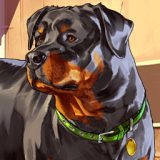
GTA V / Mods / Graphics
Simply Vibrant GTAV (ReShade)
- ubtri | uploaded by ubtri
- youtube.com/user/ubtri
- 05/07/2015
- 8082 Downloads
Ratings:
Please sign in first.
Favorites:
Download
15.60Mb
15.60Mb


Videos
No videos added yet.You need to be signed in to add videos to this mod.
Description
These settings have been tweaked by ubtri
Comparison video: https://www.youtube.com/watch?v=0_aW6OYcyCs
This is an evolution of my previous settings, "Sharp Vibrant Realism."
This is a tweaked MasterEffect.h that simply adds more color mainly through the use of Filmicpass & Tonemap. Vibrance is used globally to tone the colors back down a notch and, combined with Bloom, adds a touch of warmth to everything.
ReShade/SweetFX causes huge amounts of lag during Loading Screens. Use 'Pause/Break' key to disable the effects at the start of your game. This is an issue with the ReShade's overlay injection which is out of my control!
Enabled: SMAA, Bloom, Sharpening (not too much), Vibrance, Curves, Filmicpass & Tonemap
In-Game: Turn ON FXAA & turn OFF SMAA for better performance with these settings.
Thanks to the ReShade team (Crosire, Marty McFly - http://facebook.com/MartyMcModding) for developing these tools!
INSTALL:
Simply copy the contents into your main GTAV installation directory. Pause/Break toggles it On/Off.
For ReShade updates, or to try other dll versions, please visit http://reshade.me/.
Comparison video: https://www.youtube.com/watch?v=0_aW6OYcyCs
This is an evolution of my previous settings, "Sharp Vibrant Realism."
This is a tweaked MasterEffect.h that simply adds more color mainly through the use of Filmicpass & Tonemap. Vibrance is used globally to tone the colors back down a notch and, combined with Bloom, adds a touch of warmth to everything.
ReShade/SweetFX causes huge amounts of lag during Loading Screens. Use 'Pause/Break' key to disable the effects at the start of your game. This is an issue with the ReShade's overlay injection which is out of my control!
Enabled: SMAA, Bloom, Sharpening (not too much), Vibrance, Curves, Filmicpass & Tonemap
In-Game: Turn ON FXAA & turn OFF SMAA for better performance with these settings.
Thanks to the ReShade team (Crosire, Marty McFly - http://facebook.com/MartyMcModding) for developing these tools!
INSTALL:
Simply copy the contents into your main GTAV installation directory. Pause/Break toggles it On/Off.
For ReShade updates, or to try other dll versions, please visit http://reshade.me/.
Comments
There are 3 comments posted yet.